Overview
Check-ins are short forms your members fill in on a schedule, usually once a week. They answer questions about energy, sleep, hunger and how well they stuck to the plan, and can add their bodyweight and progress photos. You review each one, reply, and see how the answers compare with last time.
Setting up check-ins takes three steps:
- Pick or build a template (the questions).
- Turn on a schedule for each member who should check in.
- Review check-ins as they arrive.
1. Choose your templates
Go to Clients → Check-ins and click Templates. Every studio starts with a Weekly check-in template that’s ready to use. You can add more for different kinds of members, for example a fat-loss check-in that also asks about protein and steps.
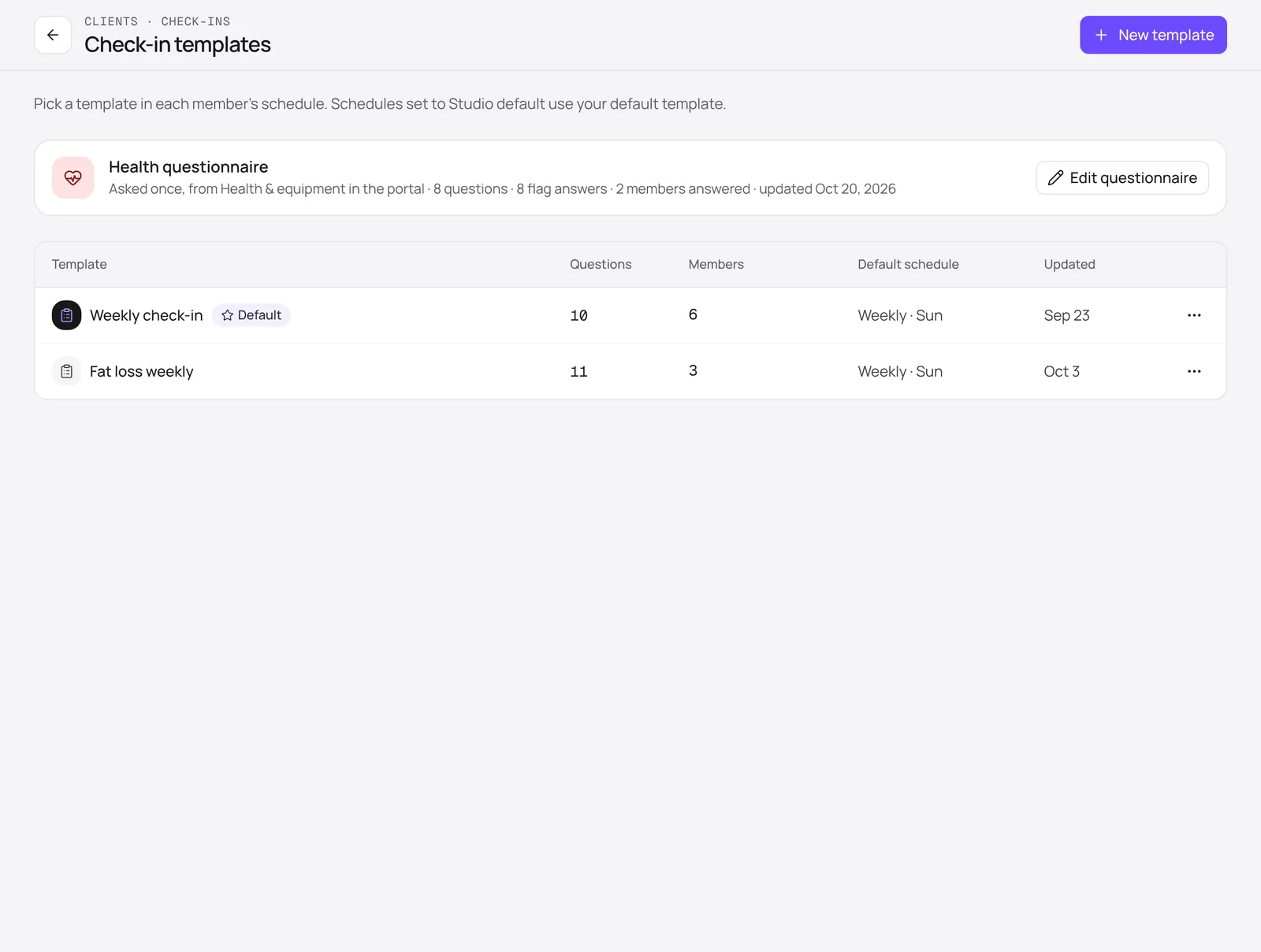
- New template starts a template from scratch, or as a copy of another.
- The template marked Default is used by every member whose schedule is set to Studio default.
- The Health questionnaire at the top is a separate, one-off form. See Using the health questionnaire.
2. Edit the questions
Click a template to edit it. Set its name and default schedule, then add, edit or reorder questions. The Member preview on the right shows exactly what your members will see as you edit.
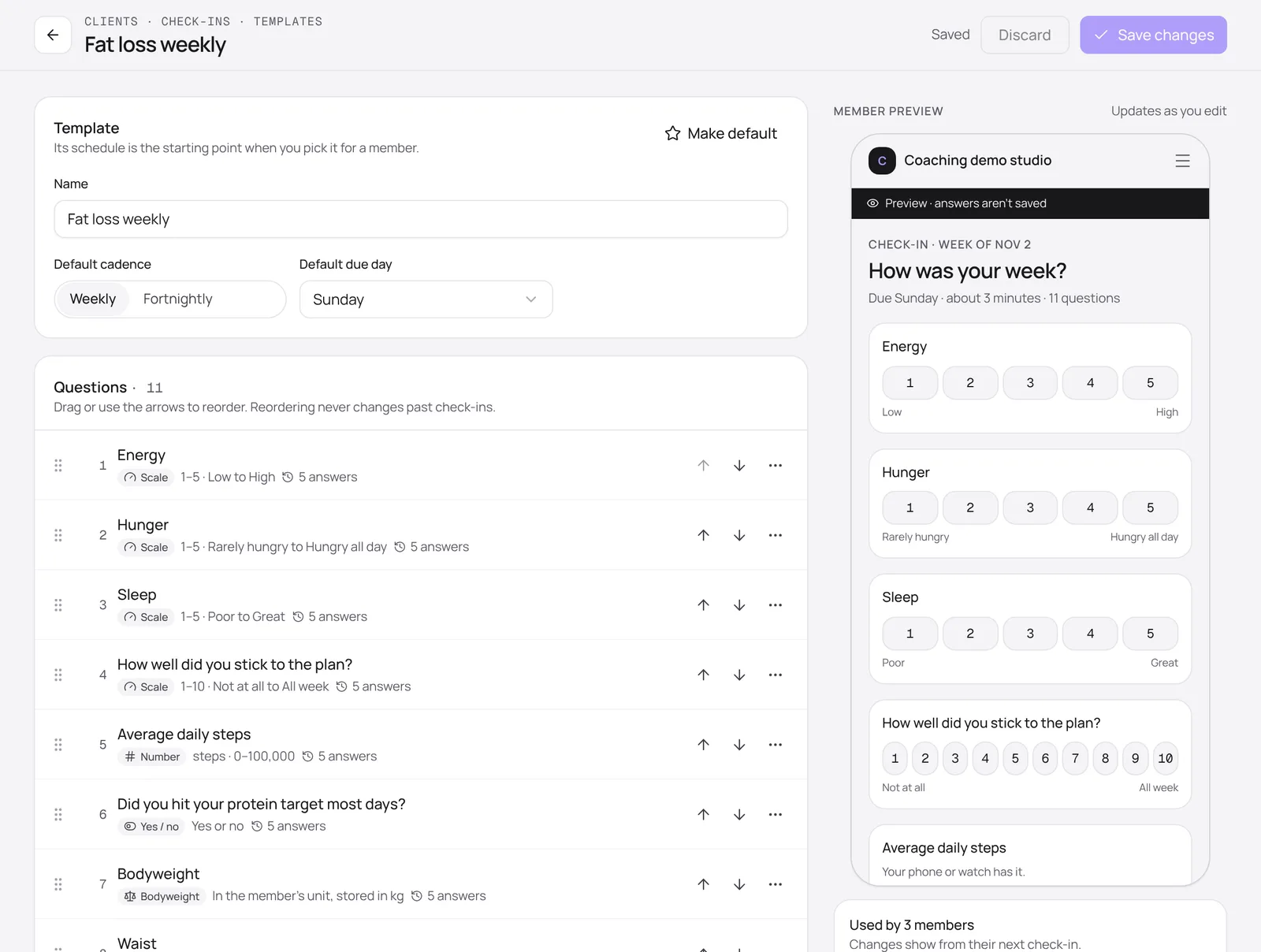
Each question has a type:
- Scale: a 1–5 or 1–10 rating with your own labels, like “Poor” to “Great”.
- Number: a value with a unit, like average daily steps.
- Yes / no and Text for quick answers or a few words.
- Bodyweight: recorded in the member’s own unit and added to their progress charts.
- Photos: progress photos, visible only to the member and your team.
Click Save changes when you’re done. Changes apply from each member’s next check-in; check-ins already sent never change.
3. Schedule a member
- Open the member and click Check in, then Schedule.
- Turn Check-ins on.
- Pick a Template, a Cadence (weekly or fortnightly) and the Due day.
- Click Save schedule.
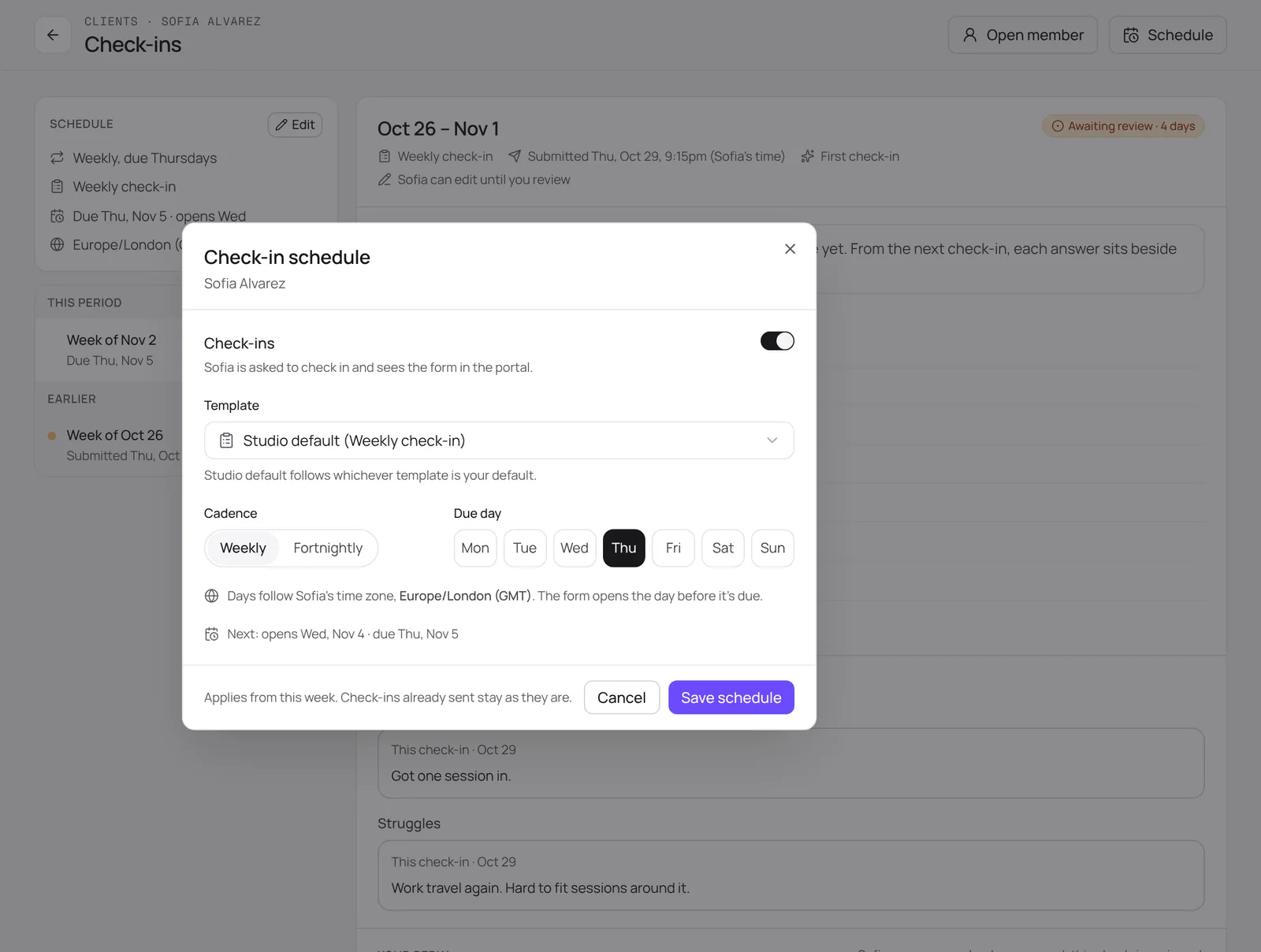
Days follow the member’s own time zone. The form opens the day before it’s due, and the member sees it in the portal and the TrainerLane Coach app.
4. Review check-ins
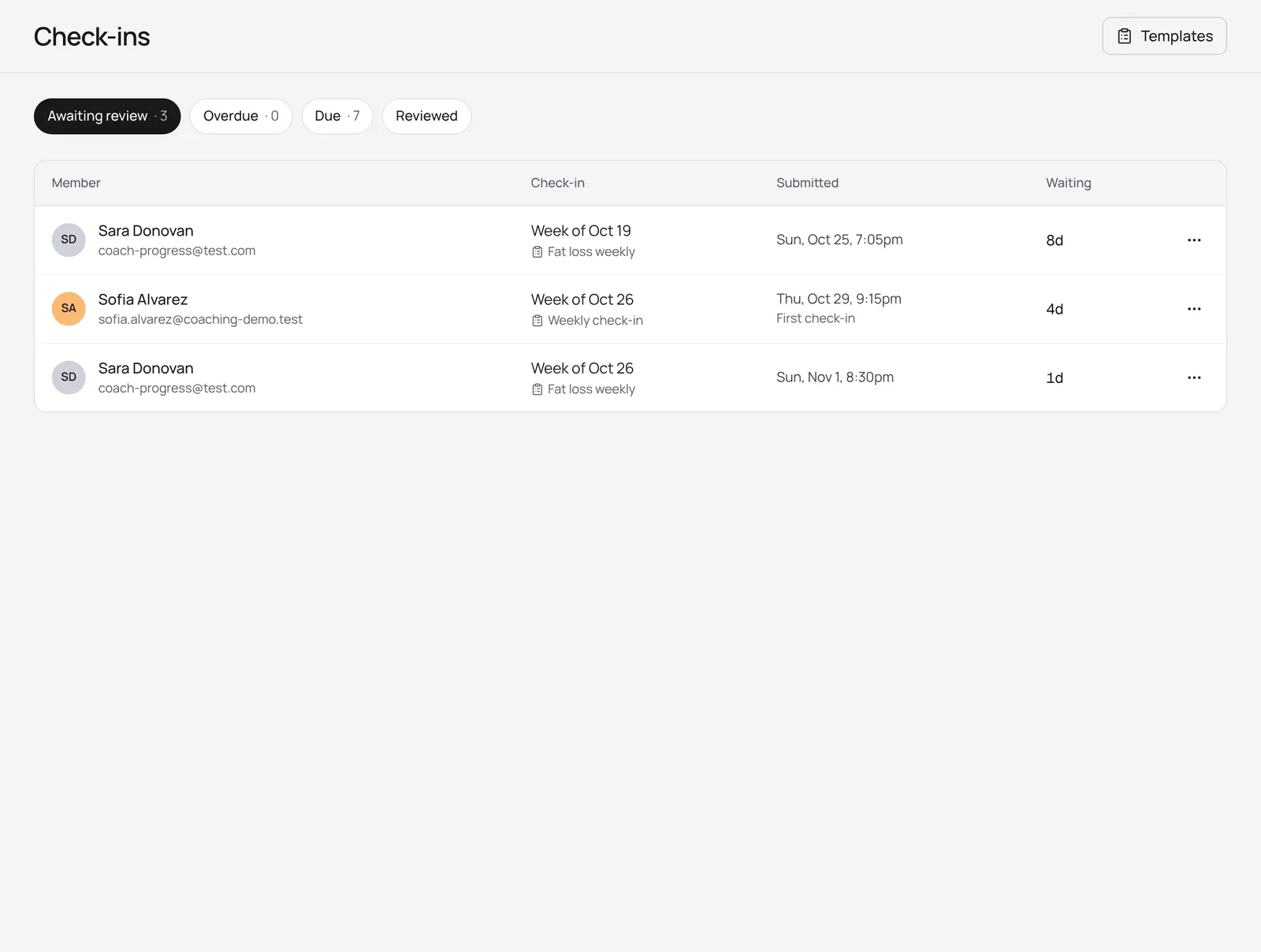
Clients → Check-ins is your review queue. The tabs split check-ins into Awaiting review, Overdue, Due and Reviewed, and the Waiting column shows how long each member has been waiting for you.
Click a check-in to open it. Numbers sit beside the member’s previous answers with the change, so you can spot trends quickly. Written answers and photos follow.
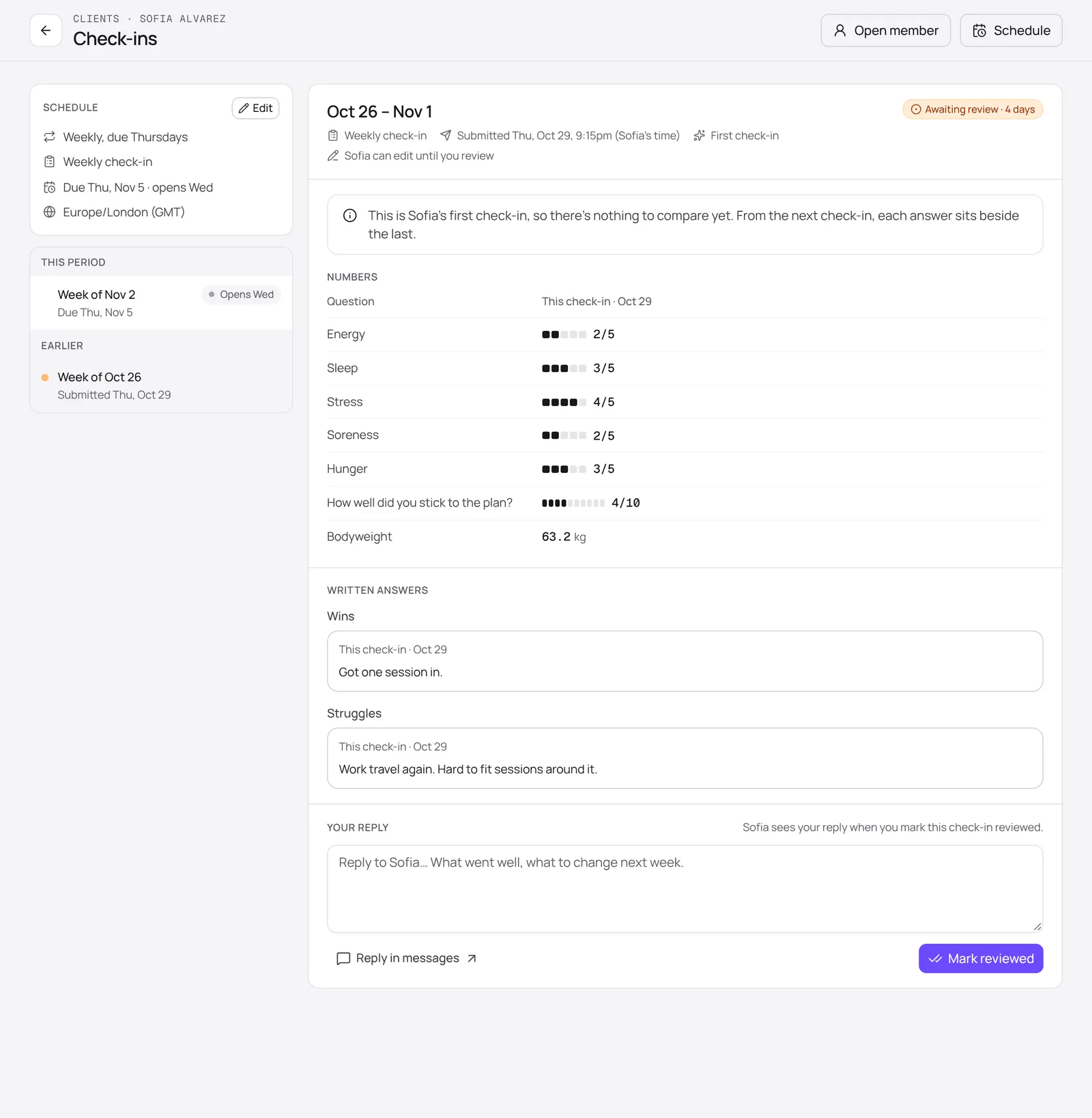
- Write a reply under Your reply: what went well, and what to change next week.
- Click Mark reviewed. The member sees your reply straight away.
Prefer a conversation? Reply in messages opens your messages with the member, linked to this check-in. Until you review it, the member can still edit their answers.