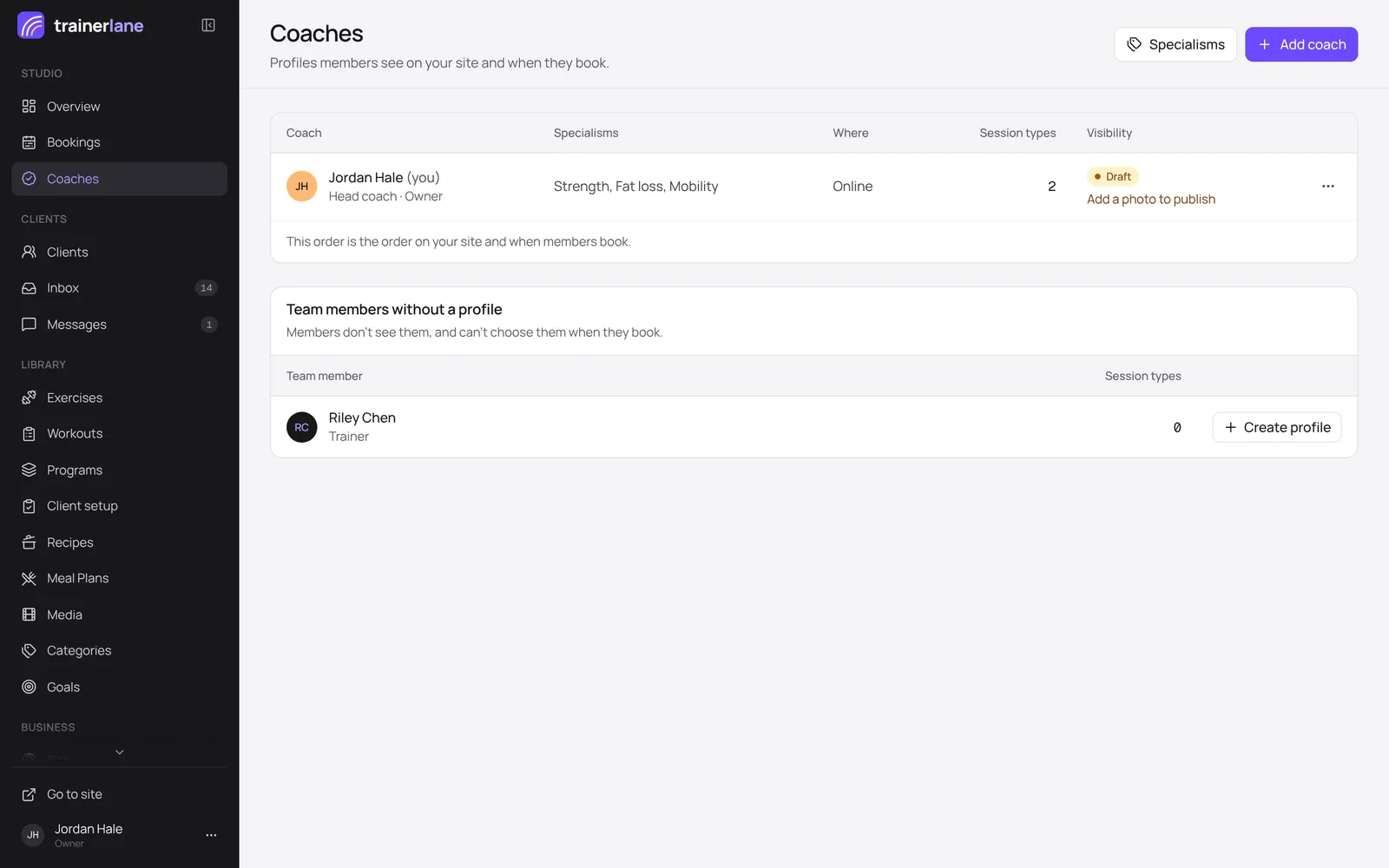
A coach profile introduces one of your coaches to members: a photo, an intro, their specialisms and qualifications. Members see profiles on your site and when they book, and can choose who they train with. You manage them under Coaches, in the Studio part of the sidebar.
The Owner and Admins create, edit, hide and delete every profile.
A Trainer creates and edits their own profile. They can’t change who sees it or mark a qualification checked.
Every coach approves their own profile before members see it.
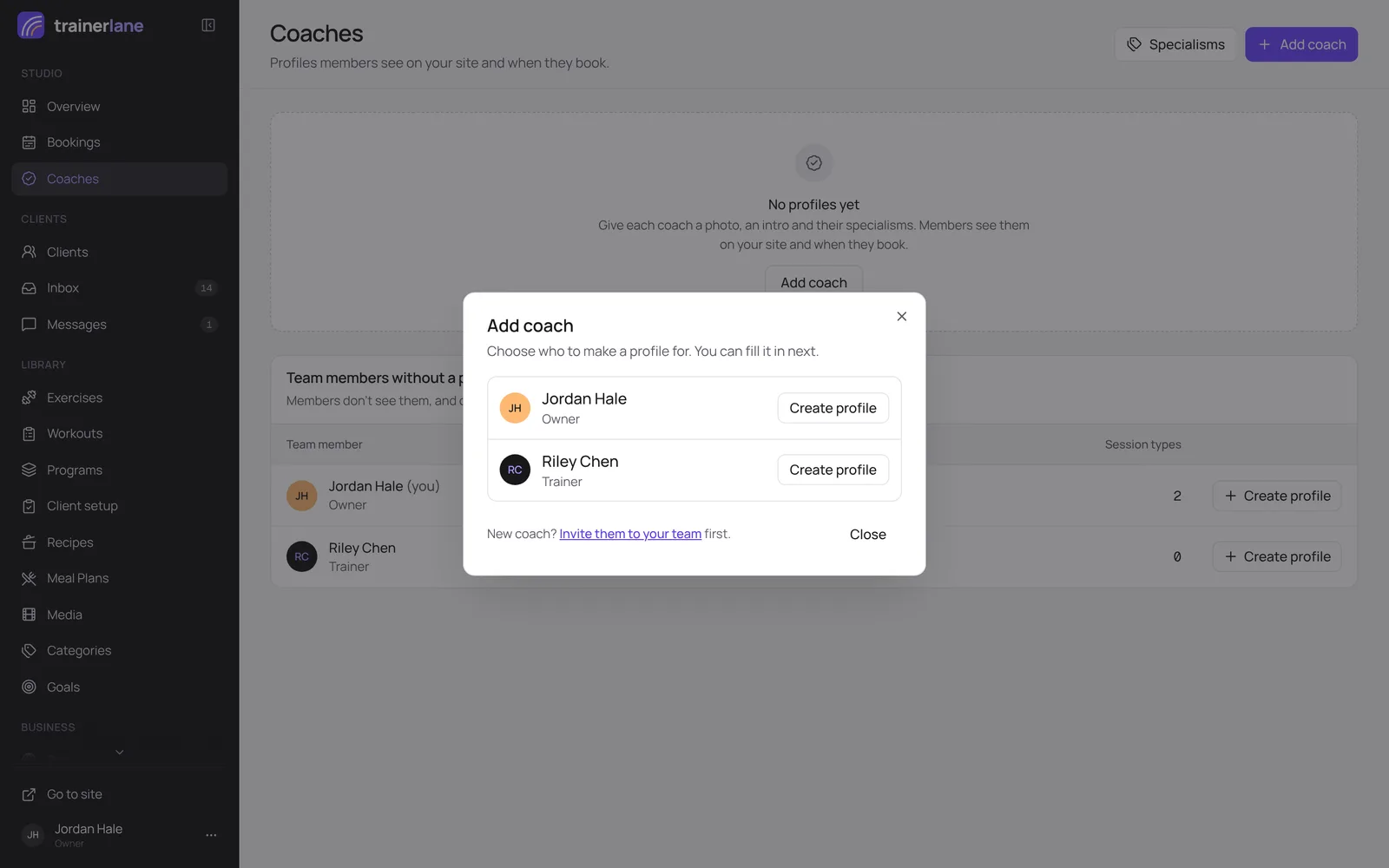
Add a coach
Each profile belongs to someone on your team, so a new coach joins through Settings › Team first. See Your studio settings.
Click Add coach.
Click Create profile beside the team member. Their profile opens, ready to fill in.
A Trainer sees Create your profile to make their own. If you coach on your own, Coaches offers Create your coach profile instead. It starts from Site › Profile, with your bio, photo and specialisms, so there’s little to add.
Fill in the profile
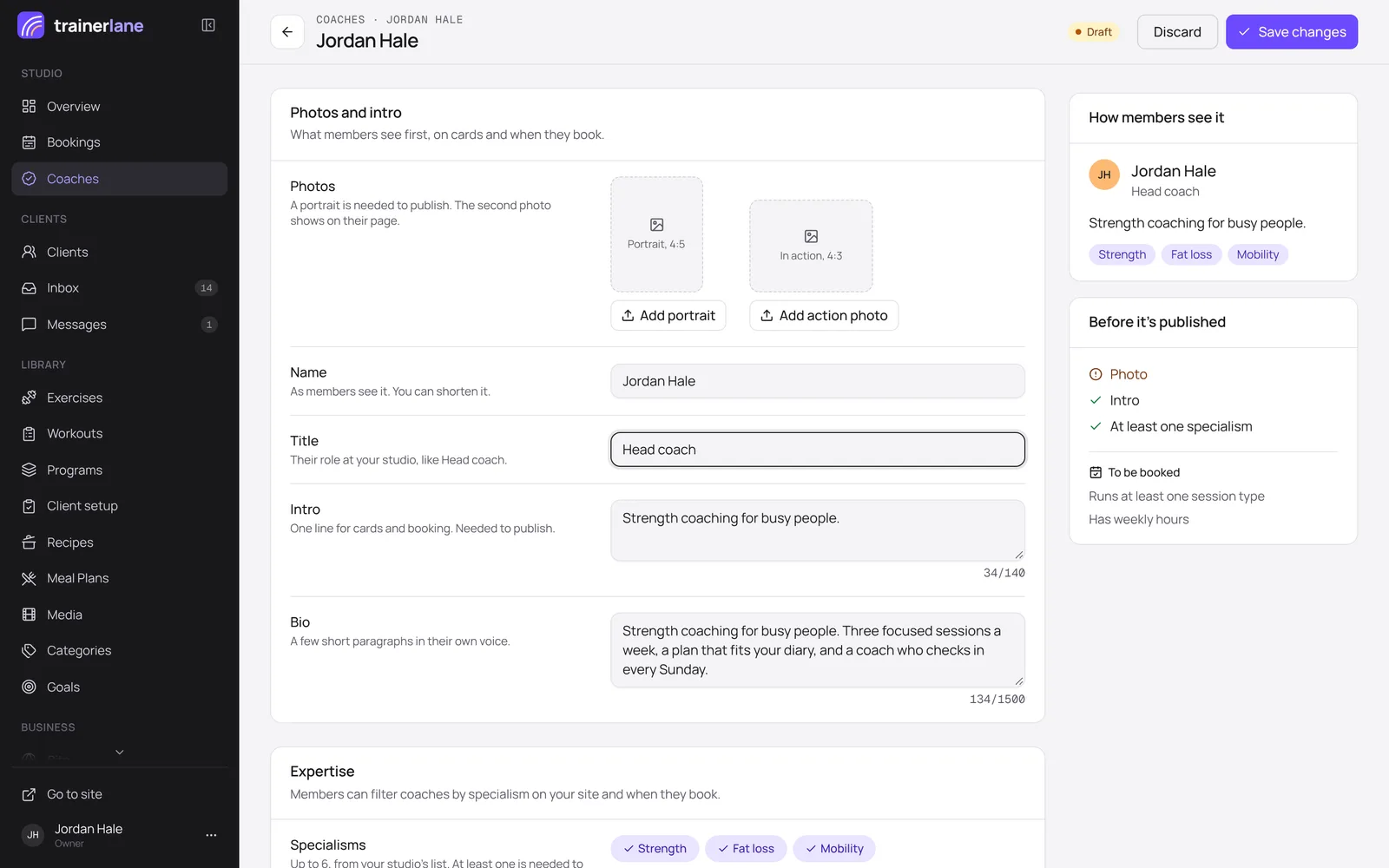
Photos and intro: a portrait (4:5) and an optional photo in action (4:3) for their page, their name, a title such as Head coach, a one-line intro for cards and booking, and a bio. Photos save straight away.
Expertise: up to 6 specialisms from your studio’s list, qualifications, the year they started coaching, languages, pronouns, a client quote and their Instagram.
Coaching and booking: where they coach (your locations, or online), the session types they run, and whether they’re Taking new clients. When that’s off, only members who’ve trained with them can choose them.
Click Save changes at the top. How members see it previews their card as you type.
A profile stays a Draft until it has a photo, an intro and at least one specialism. Before it’s published lists what’s missing. Members can book a coach once they run a session type and have weekly hours, which you set on the Session types and Availability tabs of Bookings.
The coach approves their profile
A profile is about the coach, so they approve it before members see it. When you set up or change someone else’s profile, it shows Awaiting approval and we email them. They open it under Coaches, check it describes them accurately, and click Approve profile. Saving their own changes approves it too, and a profile you create for yourself needs no extra step.
Once approved, changing what the profile says about them (their name, title, intro, bio, photos, specialisms, qualifications, languages, pronouns, quote or Instagram) asks them to approve it again. Changing who sees it, its order, page address, locations, Taking new clients or a qualification’s check doesn’t.
Qualifications
Add each qualification with its awarding body and year. Once the Owner or an Admin has seen the certificate, they tick Certificate checked. Members see Checked by and your studio name beside each checked qualification, and nothing beside the others. When a Trainer edits a qualification, its check clears until it’s checked again.
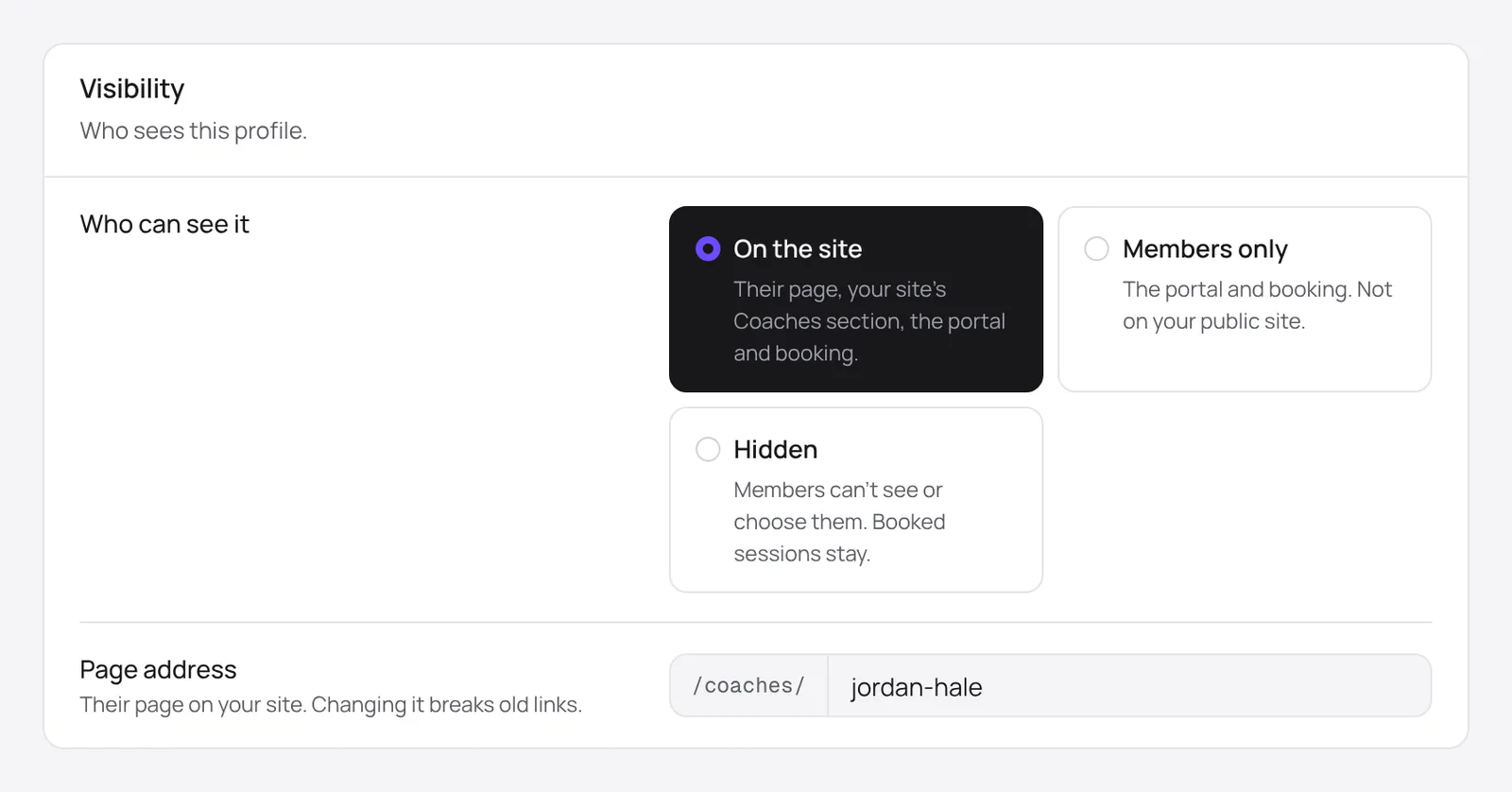
Who sees a profile
On the site: their own page, your site’s Coaches section, the portal and booking.
Members only: the portal and booking, not your public site.
Hidden: members can’t see or choose them. Sessions already booked stay.
Page address sets their page’s address on your site. Changing it breaks old links. Your site’s Coaches section appears once at least two coaches are on the site.
Manage your coaches
The table shows each coach’s specialisms, where they coach, how many session types they run and who sees them. A draft says what it needs to publish.
The ⋯ menu has Edit, Move up, Move down and Delete profile. The order here is the order on your site and when members book.
Deleting a profile removes their photo, bio and qualifications, and members stop seeing them. They stay on your team, and their bookings aren’t affected.
When a coach leaves your team, their profile comes down straight away and is deleted, with its photos, 30 days later. If they rejoin within the 30 days, it comes back as it was.
With more than one profile, filter the table to On the site, Members only, Awaiting approval, Drafts or Hidden. Move up and Move down show only when it isn’t filtered.
Specialisms edits the one list every coach picks from. Members filter coaches by it on your site and when they book.
 Personal trainersFill your diary and keep clients training between sessions.Typical plan: Starter
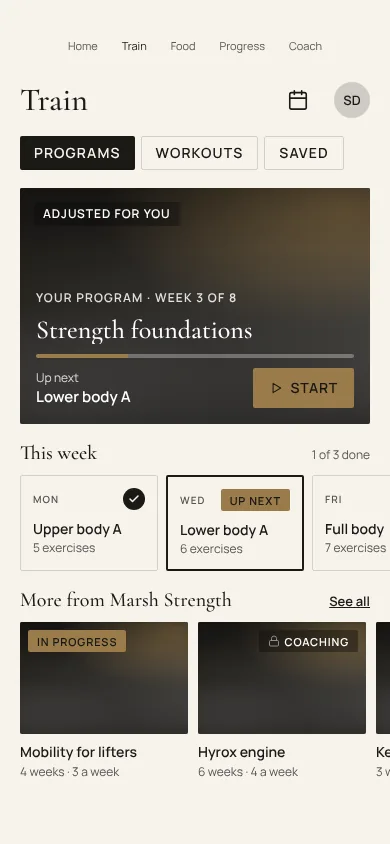
 PT studios and gymsMemberships, classes, staff and a member app, off paper.Typical plan: Growth or Scale